


- Home
- Product
- Extensions
- At Backup
Support & Customization
For further changes or customization, please contact us at info@aashro.com.
At Backup
1. Extension Overview
Extension Name: [AASHRO] Backup
Purpose: Effortlessly create a complete backup of your TYPO3 project with a single click.
Target Users:
- Editors
- Integrators
- Developers
Whether you're technical or non-technical, this extension is made for everyone working with TYPO3.
2. Features and Capabilities
✅ Key Features
- One-click backup of your entire TYPO3 project, including:
- Files
- Database
- System configurations
⚠️ Limitation ( For light version only )
- Projects larger than 2GB may not be supported due to server timeout or memory limitations.
- Make sure you have enough free server space before creating the backup.
3. Installation Instructions
The extension supports both Composer-based and non-Composer installations.
✅ TYPO3 Compatibility
- TYPO3 v11
- TYPO3 v12
- TYPO3 v13
3.1 Composer-based Installation
Run the following commands in your project root directory:
Local development site (DDEV):
ddev composer require aashro/at-backup:@dev
Live site:
composer require aashro/at-backup
3.2 Non-Composer Installations
- Log in to the TYPO3 Backend.
- Go to the Extension Manager module.
- From the top drop-down menu, select Get Extensions.
- Search for at_backup and install the extension.
- Alternatively, you can download the extension from the TYPO3 Extension Repository (TER) and upload it manually: https://extensions.typo3.org/extension/at_backup
System Requirements
- Minimum free disk space equal to your project size is required to store the backup. ( If you want to backup everything. )
- Recommended: Use in environments with adequate PHP execution time and memory limits.
4. Setup and Configuration
No special configuration is required. The module works out-of-the-box.
After Installation
- A new backend module named “AT Backup” is automatically added under the Web section.
- If the module is not visible:
- Try clearing the TYPO3 cache
- Or reload the TYPO3 backend
No TSconfig, Constants, or extra setup steps are required.
5. Usage
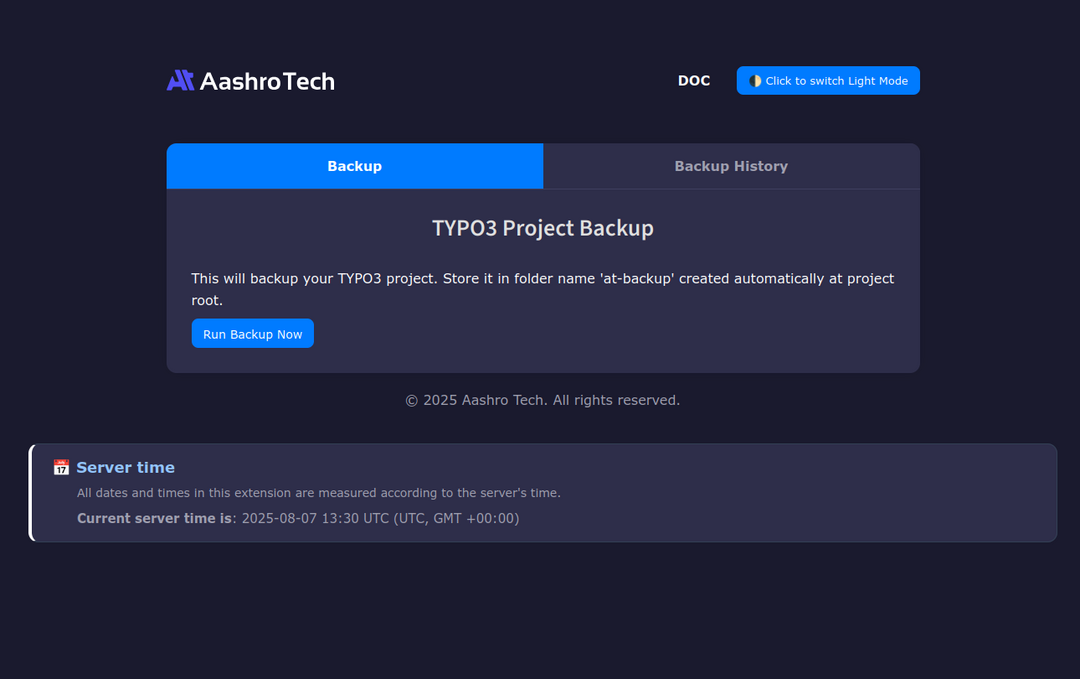
- Navigate to Web > AT Backup in the backend.
- Click on the “Create Backup” button.
- Wait for the process to complete.
- A ZIP archive containing your backup will be generated and stored securely.
